Register a service principal in Entra
In order to integrate with the EQON API using a service principal, you need to create an app registration in your Entra.
- Sign in to the Azure Portal as an admin.
- Search for and select Microsoft Entra ID.
- Under Manage, select App registrations > New registration.
- In the Register an application window, enter the app name, and then select Register.
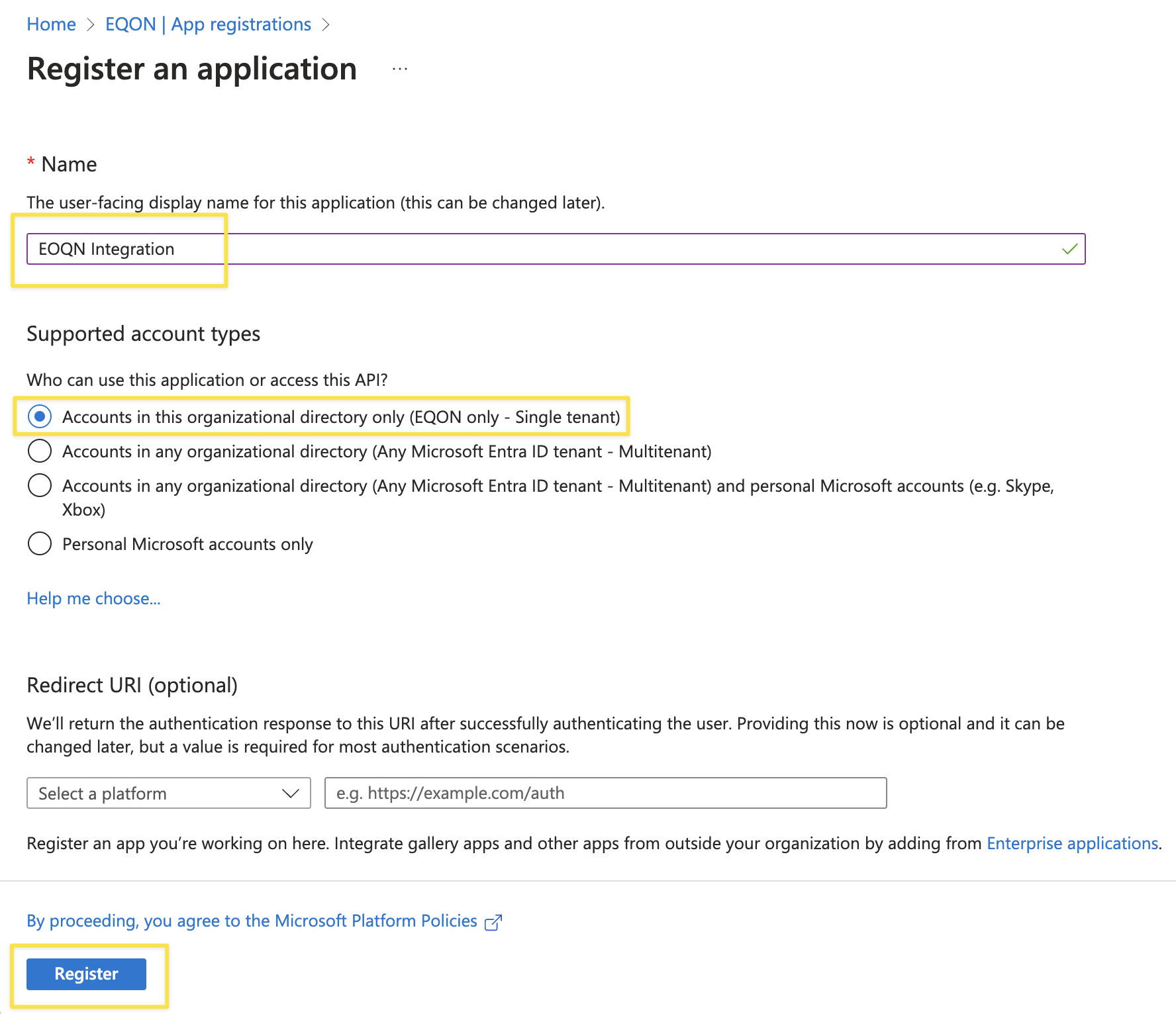
- Copy and make a note of the Application (client) ID. This value is required for authentication.
- Under Manage, select Certificates & secrets > New client secret.
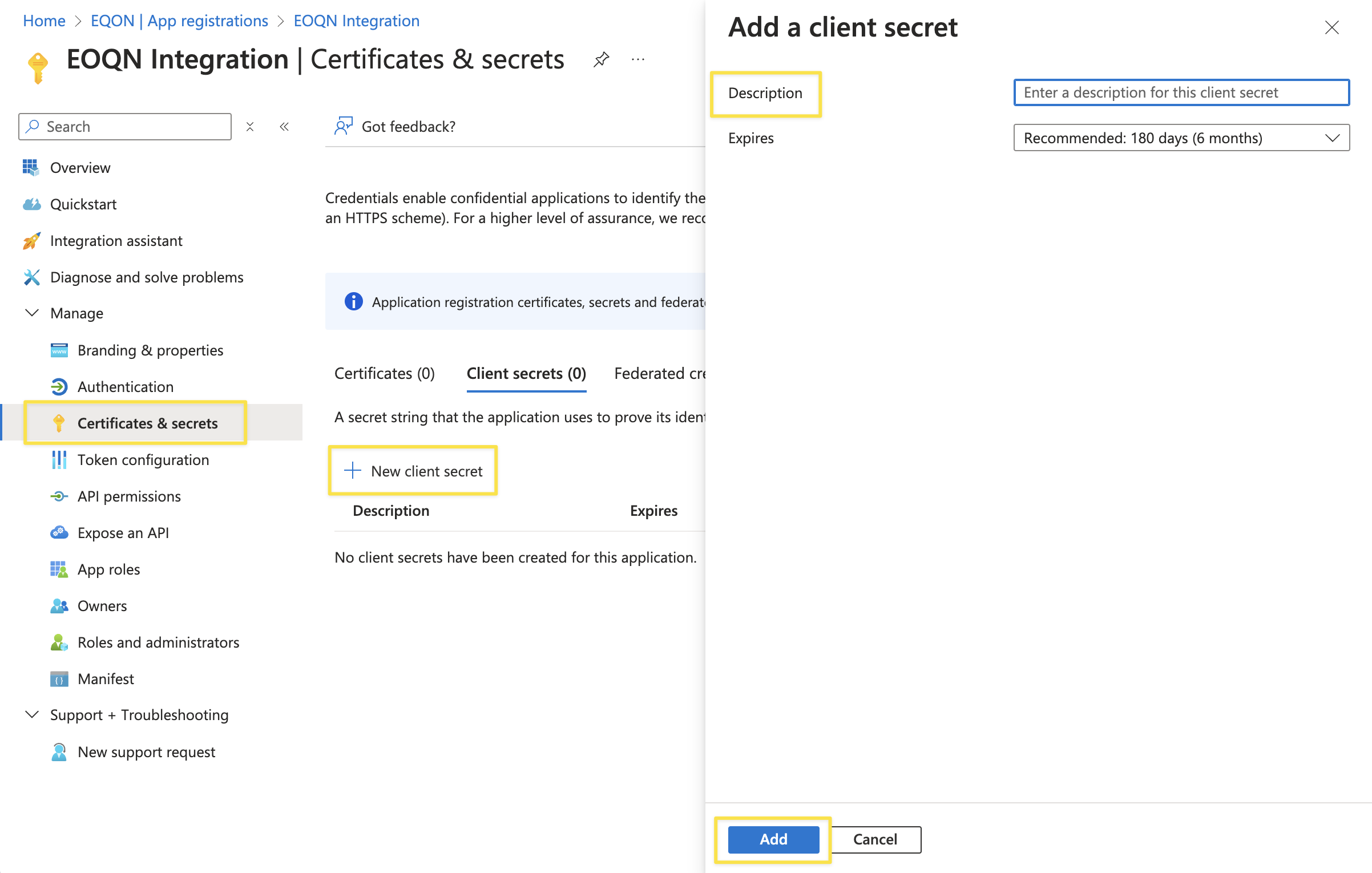
- Enter a client secret description and an expiry time, and then select Add.
- Copy and make a note of the client secret in the Value field.
NOTE
Make sure you copy this value now. This value will be hidden after you leave this page.
- Configure API permissions:
- Select API permissions. The Microsoft Graph
User.Readpermission should already be selected. - Select Add a permission and in the next screen, under APIs my organization uses, find EQON Online.
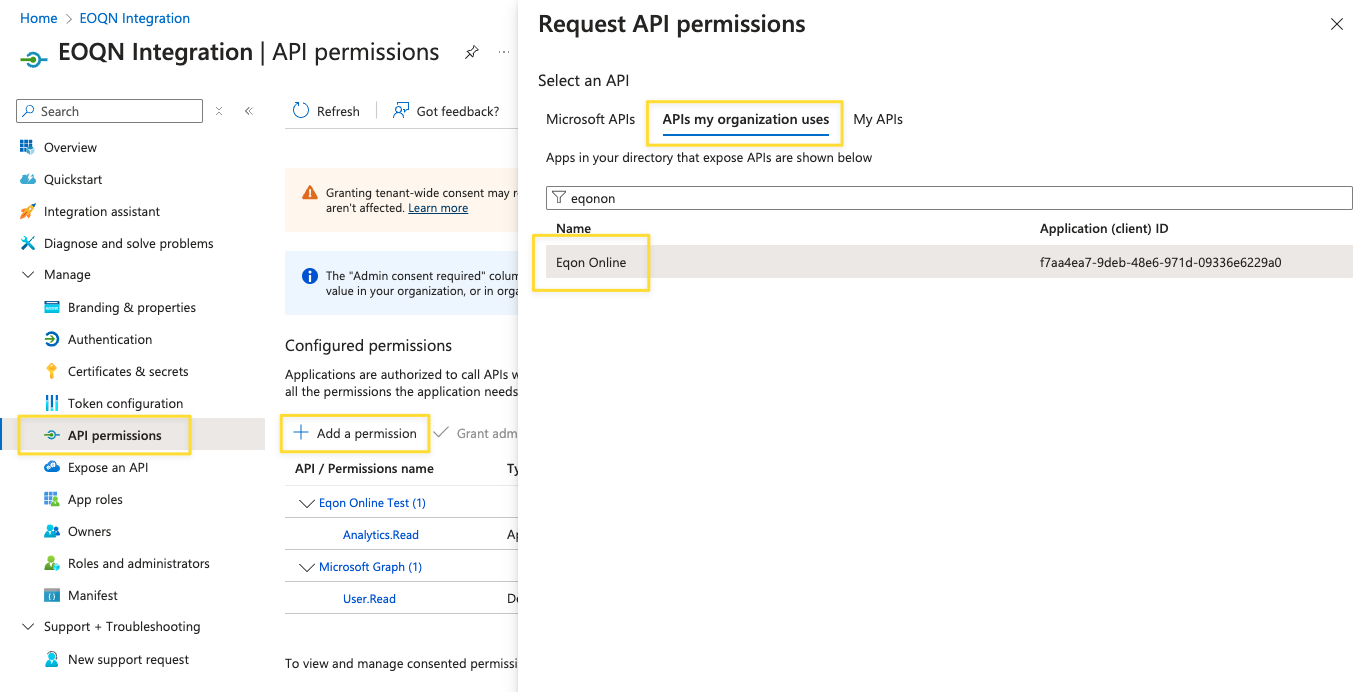
- For Application permissions, select Integration.
- Select Add permissions.
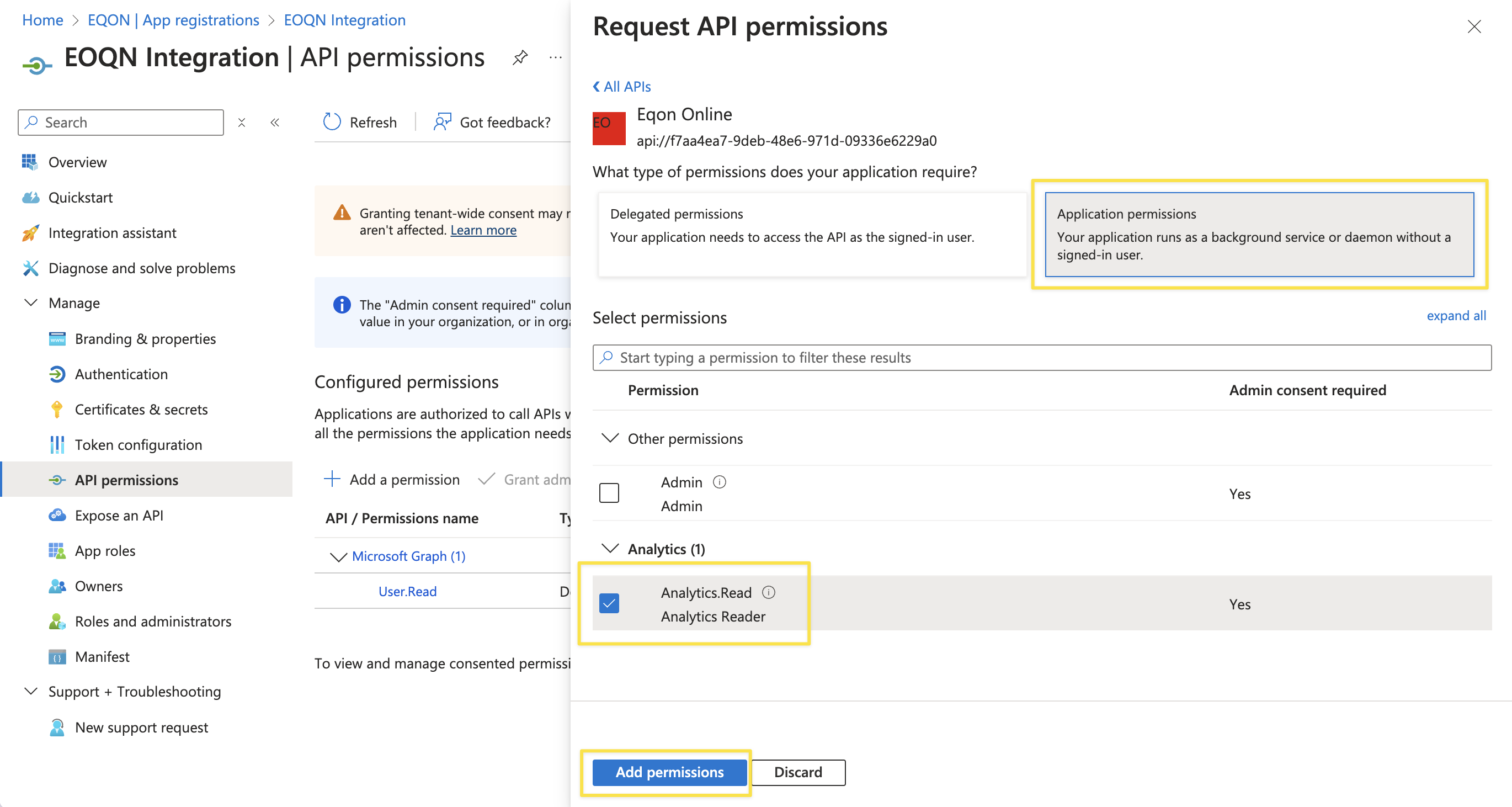
- The API permissions should like this:
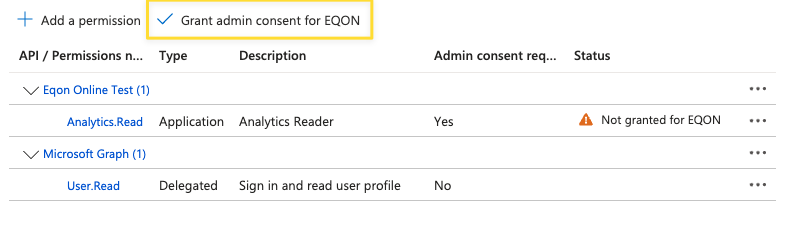
- Select Grant admin consent for... and confirm that you want to make the new list of permissions active.
- Select API permissions. The Microsoft Graph
Client Credentials
After this process, you should have all you need to obtain valid access tokens for the EQON API.
| Parameter | Example Value | Description |
|---|---|---|
| Base URL | https://api.eqon.com/ | Root URL for the EQON API |
| Client ID | 6e8d7e22-542e-4a98-9293-7e5ede491c4a | Obtained in step 5 |
| Client secret | 5mN8Q~HZjU50ExWLGrXz3sqBeCErIJ-ZgWvfAcAj | Obtained in step 8 |
| Scope | api://f7aa4ea7-9deb-48e6-971d-09336e6229a0/.default | To be used when aqcuiring access tokens |
| Tenant ID | de0665a2-563f-4791-8836-a9f55f8b84e5 | Your Entra tenant ID |